> ## Documentation Index
> Fetch the complete documentation index at: https://botpress.com/docs/llms.txt
> Use this file to discover all available pages before exploring further.
# Configure Human Handoff
If you want to allow a live agent to join your agent's conversations, you can configure this in the ** Human Handoff** section of your bot's menu.
For new workspaces, Human Handoff has moved to [Botpress Desk](https://botpress.com/desk), our new AI helpdesk for modern support teams. Go to **Human Handoff > Open Botpress Desk** to get started setting up your workspace.
Users on existing workspaces can follow the steps below and continue using the legacy HITL integration.
## Setup
To get started using Human Handoff, you need to install and configure the official Human-in-the-Loop (HITL) integration:
Install and configure the official integration Plus
When you've finished setting up the integration, you'll have access to the Human Handoff **Dashboard**.
***
## Dashboard
When you've finished setting up the integration, you'll have access to the Human Handoff **Dashboard**. Here's how it works:
### View your tickets
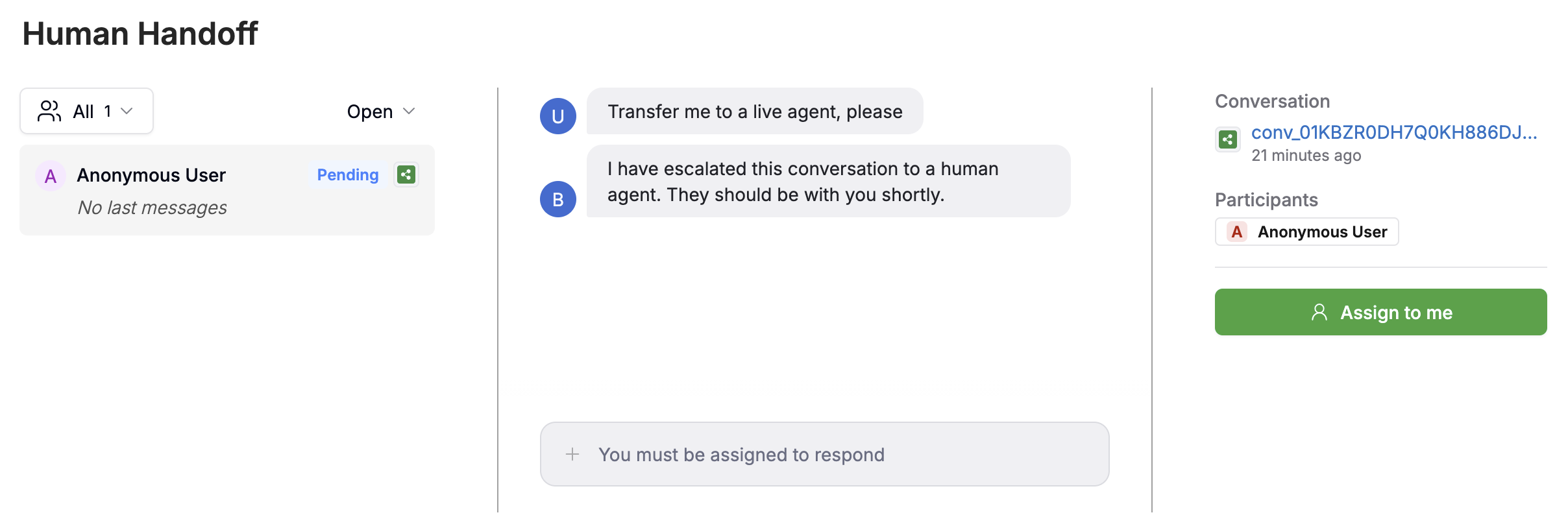
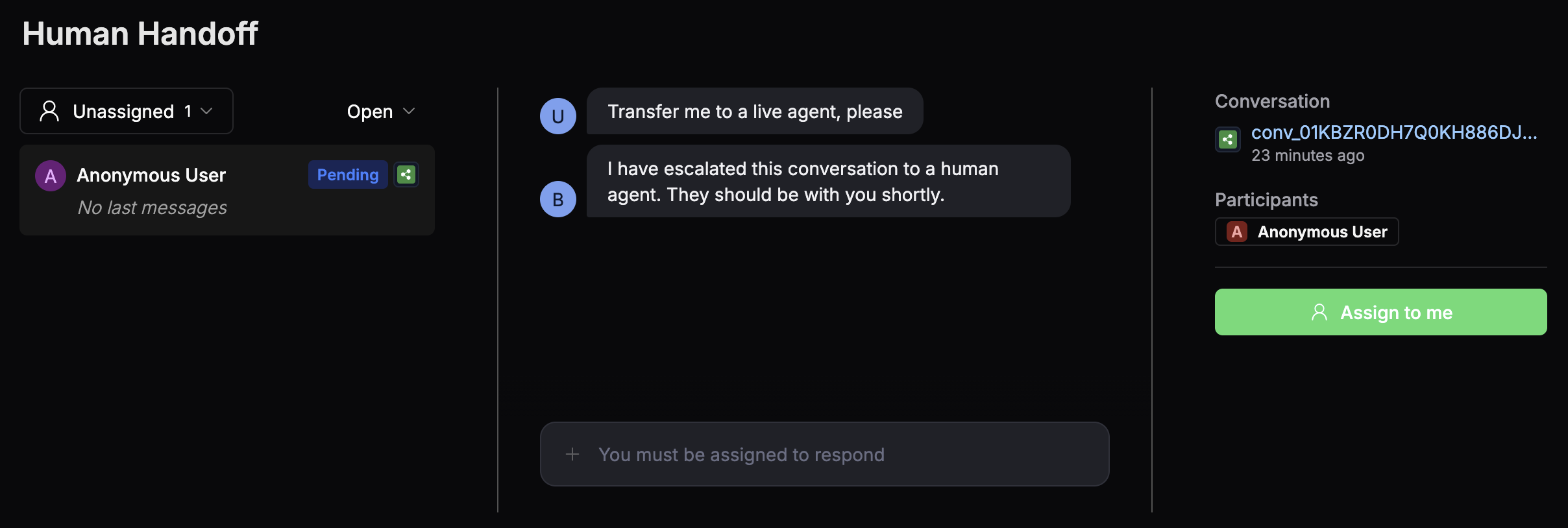
When a user triggers Human Handoff, a ticket is opened. You can view your tickets in the left sidebar:

 Select any ticket to view the conversation with the user.
You can use the drop-down menus to filter your tickets by their status.
### Assign a ticket
You can assign a ticket to anyone in your Workspace, including yourself. For example, select ** Assign to me**:
Select any ticket to view the conversation with the user.
You can use the drop-down menus to filter your tickets by their status.
### Assign a ticket
You can assign a ticket to anyone in your Workspace, including yourself. For example, select ** Assign to me**:
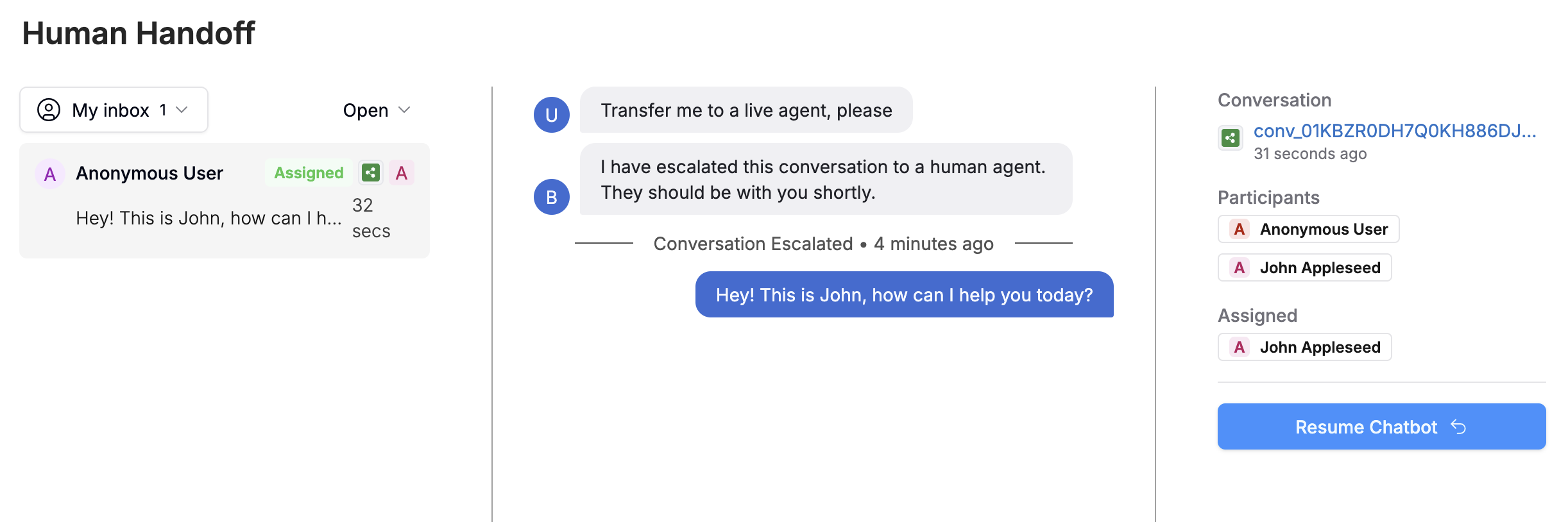
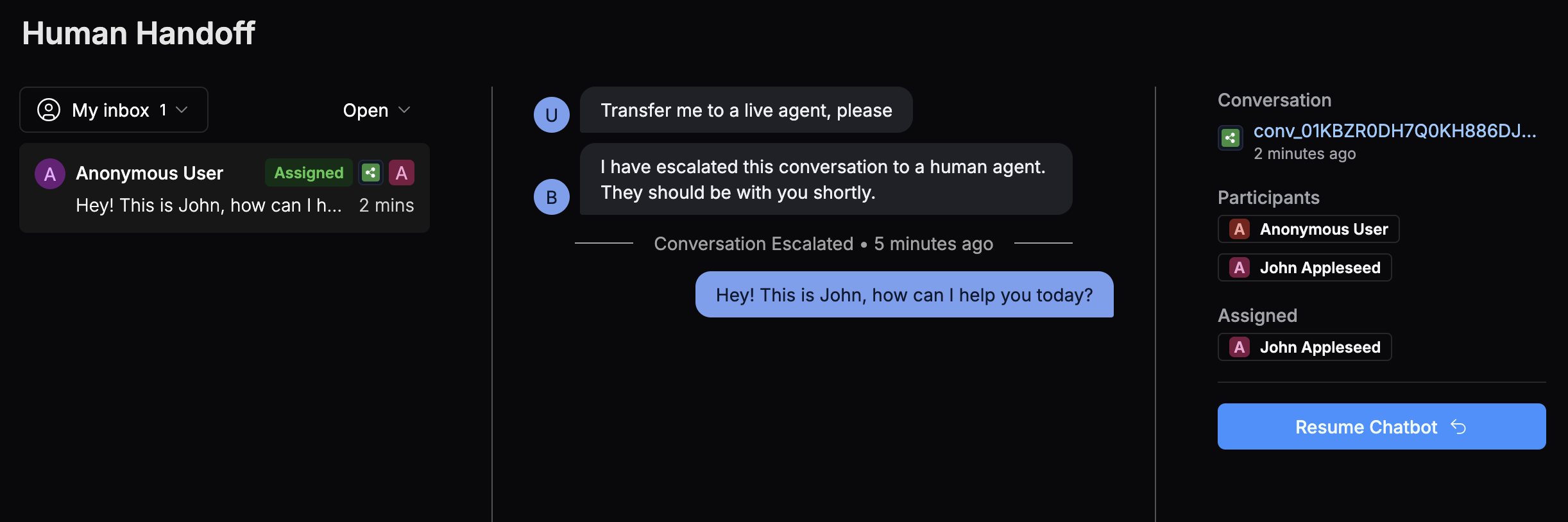
 Now you can chat directly with the user:
 ### Close a ticket
When you've resolved the conversation with the user, select **Resume Chatbot **. This removes you from the conversation and lets the user keep chatting with your agent.
## Testing
You can test Human Handoff by using your agent's preview to simulate an escalation.
Open your agent's [preview](/get-started/manage-your-agent/preview).
Chat with your agent until it triggers Human Handoff:
### Close a ticket
When you've resolved the conversation with the user, select **Resume Chatbot **. This removes you from the conversation and lets the user keep chatting with your agent.
## Testing
You can test Human Handoff by using your agent's preview to simulate an escalation.
Open your agent's [preview](/get-started/manage-your-agent/preview).
Chat with your agent until it triggers Human Handoff:
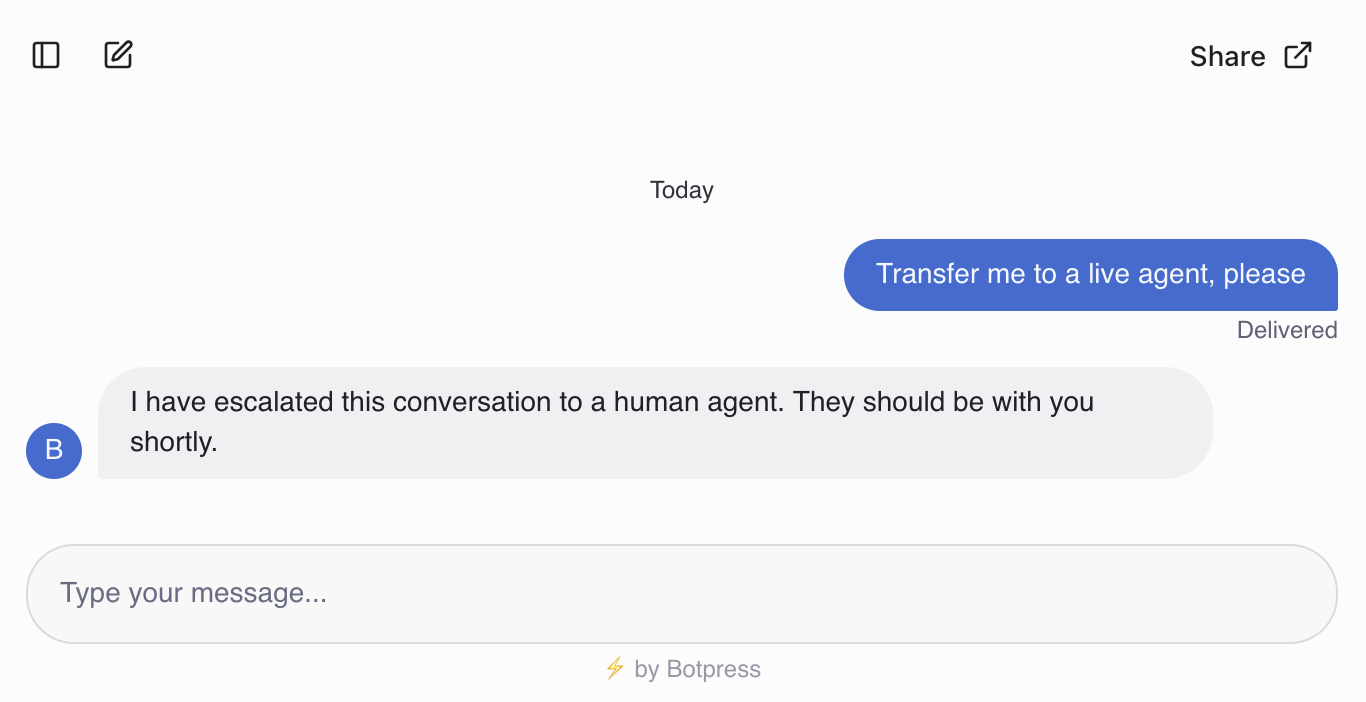
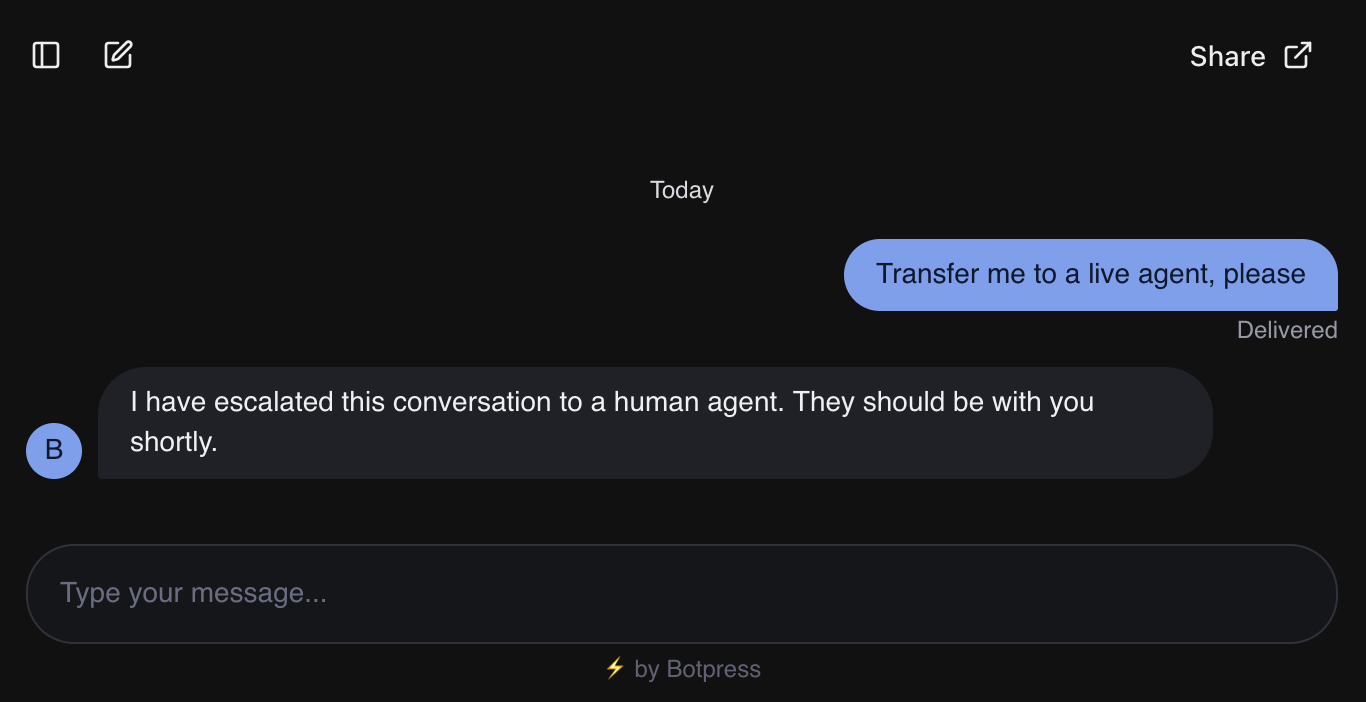 Navigate to the Dashboard, then go to the bot's ** Human Handoff** menu. From there, you can assign and interact with the ticket.